Table of Contents
What Happened
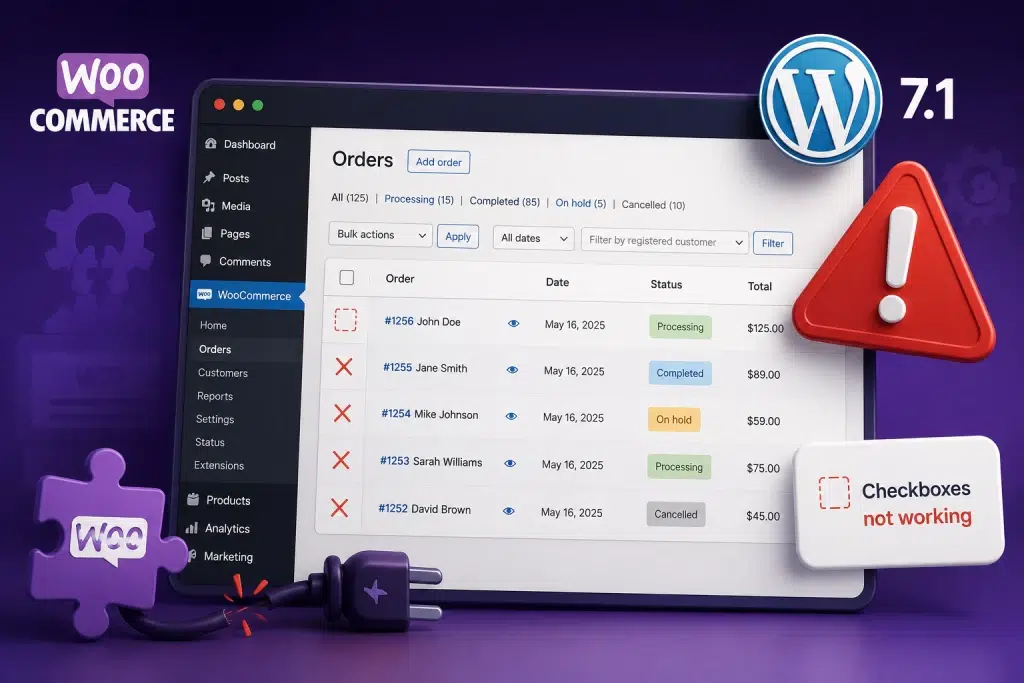
A compatibility bug between WordPress 7.1 and WP Rocket caused a PHP fatal error that took websites completely offline, including the WordPress dashboard.
WP Rocket is installed on well over a million websites. When WordPress 7.1 began rolling out through automatic updates, sites running affected versions started failing every single request, not a slow site or a broken layout, but a hard crash that stopped WordPress from loading at all.
| Date | Event |
|---|---|
| 6 July 2026 | The bug is reported on WP Rocket’s GitHub during the WordPress 7.1 beta, with a one-line fix suggested |
| 19 August 2026 | WordPress 7.1 is released and begins rolling out via auto-updates |
| 19 August 2026 | Sites running WP Rocket start going offline within hours |
| 20 August 2026 | WP Media releases WP Rocket 3.23.2.2 containing the fix |
The six-week gap between the report and the patch has drawn criticism across the WordPress community, particularly because the eventual fix was the same one-line change proposed in the original report.
Is My Website Affected?
Only if it runs WordPress 7.1 together with WP Rocket 3.23.2.1 or earlier, and has at least one other plugin or theme hooking a closure onto a specific WordPress action.
Three Conditions Must Be True
| Condition | Detail |
|---|---|
| WordPress core | Version 7.1, released 19 August 2026 |
| WP Rocket | Version 3.23.2.1 or earlier — roughly 3.16 onwards. Fixed in 3.23.2.2 |
| A third-party closure | Hooked onto deleted_post at priority 10, or transition_post_status at PHP_INT_MAX |
Elementor Pro is the most commonly reported trigger for that third condition, though any plugin can cause it. Elementor is not doing anything wrong — hooking closures is standard WordPress practice.
Being fully up to date offered no protection. Many of the first sites to go down were running the latest available WP Rocket at the time.
What the Error Looks Like
Check your PHP error log, and you will see this repeating on every request:
PHP Fatal error: Uncaught TypeError: substr(): Argument #1 ($string)
must be of type string, int given in
…/wp-content/plugins/wp-rocket/inc/ThirdParty/Plugins/CDN/Cloudflare.php:562
The file path is the giveaway. If your stack trace ends at WP Rocket’s Cloudflare.php, this is the bug — not a hack, not a corrupted install, and not something your host broke.
You do not need to use Cloudflare to be affected. WP Rocket’s Cloudflare compatibility module loads on every request regardless of whether the Cloudflare plugin is installed.
How to Fix It
Deactivate WP Rocket to bring the site back online, update it to 3.23.2.2, then reactivate.
Step 1: Deactivate WP Rocket
The usual route, deactivating the plugin from the WordPress dashboard, will not work because the dashboard is throwing the same fatal error. You have three options.
Option A — WordPress Recovery Mode. WordPress may have emailed the site administrator a recovery link when the error occurred. That link gets you into a limited dashboard where you can pause the plugin.
Option B — Rename the plugin folder. Over SFTP or your hosting file manager, rename wp-content/plugins/wp-rocket to something else, such as wp-rocket.off. WordPress treats the plugin as deactivated on the next page load. Rename it back before you update.
Option C — WP-CLI over SSH. WP-CLI loads WordPress and its active plugins, so it crashes with the same error. Tell it to skip WP Rocket:
wp plugin deactivate wp-rocket –skip-plugins=wp-rocket
Reload the site. It should come back immediately.
Step 2: Update WP Rocket to 3.23.2.2
With the site responding, the dashboard is accessible again. Update WP Rocket through Plugins → Installed Plugins.
If no update appears, that is usually because the folder was renamed or the licence check has not refreshed. WP Media has published a recovery helper plugin and a walkthrough for this situation. Use that rather than reactivating the version you already have.
Step 3: Reactivate and Test
Reactivate WP Rocket, then check:
- The homepage and several inner pages
- Checkout or enquiry forms, if you take orders or leads
- The WordPress dashboard
- The PHP error log, which should now be silent
What Not to Do
Do not delete or edit Cloudflare.php to bypass the error. The class is wired into WP Rocket’s dependency container, so removing it replaces one fatal error with a different one. Deactivate the whole plugin instead.
Why This One Was Worse Than a Normal Broken Update
Every normal recovery path was closed at the same time.
Most failed updates leave you something to work with. A plugin conflict breaks the front end but leaves the dashboard reachable. A theme problem breaks the layout, but not the checkout. You log in, switch something off, and carry on.
This bug crashed WordPress during startup, which meant it took out every entry point simultaneously:
- The front end — visitors saw a blank page or a critical error
- The dashboard — no way to deactivate the plugin normally
- The REST API and admin-ajax — anything relying on them stopped
- WP-Cron — scheduled tasks, abandoned cart emails, stock syncs, all silently stopped
- WP-CLI — even command-line access crashed, unless you knew the specific flag to skip the plugin
That combination is why sites stayed down for hours rather than minutes. Not because the fix was complicated, it was a plugin update, but because the tools you would normally reach for to apply the fix were all unavailable, and the error message pointing at the cause was buried in a server log rather than displayed on screen.
For an online store, every one of those hours is orders that did not happen.
When to Stop and Get Help
The fix above is a plugin update. What makes it go wrong is everything around it.
If your site is otherwise well maintained, this is a ten-minute job. If it isn’t, the update is rarely the hard part.
If any of these describe your situation, stop before you make it harder to recover:
- You cannot reach the WP-Admin, and you do not have SFTP or SSH access. Without a way onto the server, there is no path to deactivate the plugin. Recovery Mode may work; if it does not, you need whoever holds your hosting credentials.
- No update appears against WP Rocket. Usually, a lapsed licence. Reactivating the version you have will simply take the site down again, and buying a licence mid-outage under pressure is not the moment to be doing it.
- Someone has edited plugin or theme files directly in the past. Updating overwrites those edits. If your site has customisations that nobody documented, an update can fix this problem and quietly break another.
- Your theme, or other plugins, have not been updated in a long time. Updating one component on a site where everything else is well behind can expose a second incompatibility that has been sitting there dormant. The WP Rocket update itself is safe — it is a one-line code fix with no theme dependency — but on a site where nothing has been touched in two years, any update is the one that finally surfaces an older problem. If you are not sure when your theme and plugins were last updated, ring us before you start rather than after.
- Core, the theme and a long list of plugins are all overdue at once. With multiple changes landing together, working out which one caused what becomes genuinely difficult.
- There is no staging site and no recent backup. You are then making changes on a live site with no way back. That is the situation you least want to be in.
- You have followed the steps, and the error has changed rather than gone. A different error message means a different problem, and continuing to guess tends to compound it.
None of that means you cannot fix this yourself. It means there is a point where another hour of trial-and-error costs more than a phone call — and on a site that takes orders; that point arrives quickly.
How We Handled This for Our Clients
On 19 and 20 August, we worked through every site in our managed portfolio, applied the fix, and have been monitoring since.
When the first reports appeared on 19 August, we did not wait for client sites to break and for someone to notice. We audited every WordPress installation we manage for the affected WP Rocket versions, applied the fix across the portfolio, and confirmed each site was serving normally afterwards. Active monitoring has stayed in place since, because a compatibility problem of this shape rarely arrives alone.
200+ sites checked. 50 required the patch. Our managed clients did not have to work out what had happened, find their error logs, or ring us in a panic — for most of them, the first they heard about it was a note explaining what had been done.
That is the difference an arrangement like this makes. Not that updates never break things — this incident proves they can, with nobody at fault — but that somebody is watching the moment they do.
Have Not Updated to WordPress 7.1 Yet?
Update WP Rocket first, then take the core update.
- Update WP Rocket to 3.23.2.2
- Confirm the site is working normally
- Then allow WordPress 7.1 through
Do not leave this sitting. WordPress 7.1 auto-updates are still rolling out, which means a site nobody has touched in months can go from healthy to offline overnight with no human involvement at all.
Frequently Asked Questions
Is WordPress 7.1 Broken?
No. The change to how WordPress generates hook identifiers is a legitimate improvement to core. Sites that do not run WP Rocket are unaffected by this error. The problem was WP Rocket’s assumption that those identifiers would always be strings.
Which WP Rocket Version Fixes the Error?
WP Rocket 3.23.2.2, released 20 August 2026. Versions from roughly 3.16 through 3.23.2.1 are affected. Update before reactivating the plugin, and before updating the core.
Was My Website Hacked?
No. This is a compatibility bug between two pieces of legitimate software. There is no indication of any security compromise associated with it.
Why Does WP-CLI Crash as Well?
WP-CLI loads WordPress and all active plugins, so it hits the same fatal error. Add –skip-plugins=wp-rocket to any command you run on an affected site, including the deactivation command itself.
Can I Roll Back to WordPress 7.0.4 Instead?
Restoring pre-update backup works, but it discards everything that has happened on the site since then. Deactivating, updating, and reactivating WP Rocket is faster and loses nothing.
Will My Site Be Slow Without WP Rocket?
If your hosting does server-level page caching, most of what WP Rocket does for anonymous visitors is still covered for the few minutes it takes to update.
How Do I Know If This Will Happen Again?
You do not, and that is the honest answer. What you can control is whether a failed update is caught within minutes or discovered by a customer. That comes down to monitoring, taking backups before changes, staged rollouts, and access that does not depend on WordPress loading.
Talk to Us
If your site is down right now and the steps above have not resolved it, or you would rather not be the one making changes on a live site, get in touch. We would rather help you get it back than watch another business lose a day of trading.
And if you have read this far thinking, nobody is actually watching our website. That is worth a conversation before the next WordPress release rather than during it.