Table of Contents
What Is Happening on Your Orders Screen
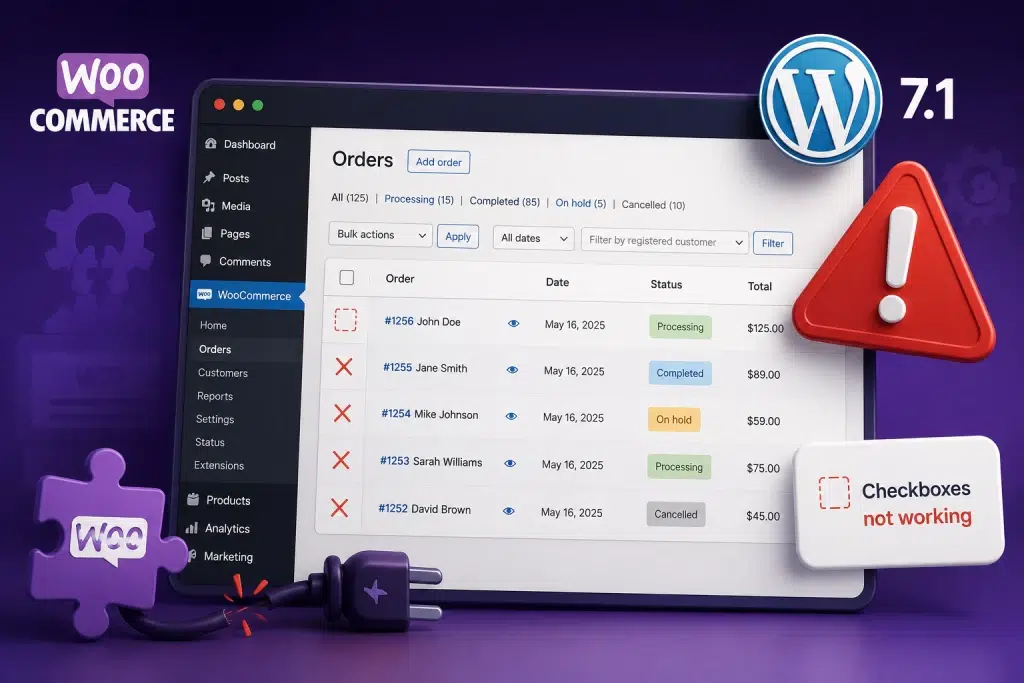
WordPress 7.1 rewrote part of the admin list table markup, and older versions of WooCommerce were reading the old structure.
The Orders screen is a list table: the same kind of screen WordPress uses for Posts, Pages and Products. WooCommerce builds its own columns, styling and JavaScript on top of the core’s markup. When core changed that markup, anything relying on the old structure had to be updated to match.
What Changed in WordPress 7.1
Up to WordPress 7.0.x, a row in an admin list table was structured like this:
<tr><th scope=”row” class=”check-column”>
<input type=”checkbox” name=”post[]” value=”123″>
</th>
<td class=”title column-title column-primary page-title”>
<a class=”row-title” href=”…”>Hello world!</a>
</td>
</tr>
From WordPress 7.1, the same row looks like this:
<tr>
<td class=”check-column”>
<input type=”checkbox” name=”post[]” value=”123″>
</td>
<th scope=”row” class=”title column-title column-primary page-title”
aria-label=”Hello world!”>
<a class=”row-title” href=”…”>Hello world!</a>
</th>
</tr>
Three things changed: the checkbox cell went from a row header to a regular table cell; the title cell became the row header and gained an aria-label; and collapsed cells in the responsive view moved to a flex layout. That last point is why the mobile layout broke as well as the checkboxes — two symptoms, one change.
Why WordPress Made This Change
This was not cosmetic. It closes an eleven-year-old accessibility bug: under the old markup, screen readers announced “Select All” instead of the order or post title when moving through a row, leaving assistive technology users without the one piece of information identifying what they were looking at.
Moving the row header onto the title cell means a screen reader now identifies each row by the thing the row is actually about. It is a genuine improvement, but the markup had been stable for over a decade, and a great deal of code quietly depended on it.
Is My Store Affected?
Open WooCommerce → Orders, try to select several orders, then narrow your browser window.
| Symptom | Where you see it |
|---|---|
| Individual order tick boxes not responding | Orders list, desktop |
| Select-all box not selecting rows | Orders list header row |
| Bulk actions applying to nothing | After attempting a bulk edit |
| Columns collapsing incorrectly or overlapping | Orders list on tablet or mobile width |
If your store is on WooCommerce 11.0.1 or later, you will not see any of this. The issue only affects stores that took WordPress 7.1 while still on an older WooCommerce release.
To check your version: WordPress dashboard → Plugins → Installed Plugins, and look at the version number under WooCommerce.
How to Fix It
Update WooCommerce to 11.0.1 or later.
That is the whole fix. WooCommerce has made the Orders list compatible with both the old and new markup, so the same code works in WordPress 7.0.x and 7.1 without any configuration on your part.
If you have not yet taken WordPress 7.1, the safe order is:
- Update WooCommerce to 11.0.1 first
- Confirm the Orders screen, checkout and any custom admin screens work
- Then allow WordPress 7.1 through
Updating WooCommerce first means that when the core update lands, you are debugging one change rather than two.
If WordPress 7.1 has already updated automatically and the Orders screen is misbehaving, simply update WooCommerce now. There is no need to roll the core back.
Worth knowing: WooCommerce 11.0.1 is flagged as a security update with no database migration required, so on a well-maintained store, this is a dashboard update and a test order rather than a maintenance evening. It also fixes a false “business location mismatch” warning that had been appearing in Payments settings for stores outside the United States — if you are in Australia and have seen that notice, it was a bug rather than a problem with your store.
Why This One Is Easy to Miss
Nothing crashes, so nobody reports it. That is what makes it expensive.
When a website goes down, you will find out within an hour; someone rings, customer emails, and the alerts of fire. A broken admin screen behaves very differently; the storefront keeps trading, checkout keeps working, and the only people affected are the staff processing orders.
In practice, what tends to happen is this:
- Someone notices the tick boxes are playing up and assumes it is their browser
- They start processing orders one at a time instead of in bulk
- A job that took two minutes now takes twenty, every day
- Nobody raises it, because the site “works”
- It surfaces weeks later, usually as an offhand complaint
At a store shipping fifty orders a day, that is hours of staff time quietly disappearing into a problem that a plugin update resolves in five minutes.
It is also a useful signal. If this went unnoticed on your store, it is worth asking what else changed with WordPress 7.1 that nobody has spotted yet, particularly on admin screens that only one or two people ever use.
When to Stop and Get Help
Updating WooCommerce on a current store is routine. In a store that is well behind, it is not.
If any of these describe your situation, get advice before you press update:
- You are several major versions behind. 11.0.1 itself needs no database update, but if you are jumping from an older major version, the upgrade path between them may. That is a different job, and it wants a backup and a staging test first.
- Your theme or extensions have not been updated in a long time. The WooCommerce update itself is safe. But on a store where everything else is well behind, any update can be the one that surfaces an older incompatibility that has been sitting there dormant. If you are not sure when your theme and extensions were last updated, ring us before you start rather than after.
- You have paid for WooCommerce extensions with lapsed licences. Subscriptions, Bookings, Memberships and similar extensions need to be compatible with the WooCommerce version you are moving to. A lapsed licence means no updates are available, which can block the whole upgrade.
- Someone has customised WooCommerce templates or plugin files directly. Updates overwrite those changes. If your store has customisations that nobody documented, an update can fix one problem and silently remove something a client relies on.
- You have custom admin columns, filters, or dashboards. These are the most likely things to break on WordPress 7.1, and they will not prompt you for an update because nobody maintains them but you. See below.
- There is no staging site and no recent backup. In a store that takes orders, changes made directly to production with no way back are the situation you least want to be in.
None of this means the update is dangerous. It means that on a store carrying revenue, the five minutes you save by skipping a staging test is not a good trade.
If You Maintain Custom Admin Code
This is where agencies and in-house developers get caught. Bespoke admin columns built for a client three years ago have no changelog, will never prompt an update, and will simply stop working.
The core team’s guidance is to target both structures rather than swapping one for the other:
/* Before — breaks on WordPress 7.1 */th.check-column input[type=”checkbox”] { … }
/* After — works on 7.0.x and 7.1 */
.check-column input[type=”checkbox”] { … }
td.column-primary .row-actions,
th.column-primary .row-actions { … }
Dropping the element name and selecting on the class alone is usually the cleanest fix. It works on both versions and does not need to be revisited the next time core changes.
The same applies to JavaScript selectors, and to any third-party plugin that customises admin list tables: column managers, order filters, export tools. Check each one’s changelog for a WordPress 7.1 compatibility entry before you update core.
How We Handled This for Our Clients
CHOOSE ONE FRAMING — both are drafted below
Framing A assumes WooCommerce 11.0.1 was pushed across the managed portfolio as part of WordPress 7.1 readiness. Framing B is the honest reactive version if it was caught on individual client stores. Delete the one you are not using, along with this box.
Framing A — if 11.0.1 was rolled out ahead of WordPress 7.1
We updated WooCommerce across our managed stores before WordPress 7.1 reached them.
WooCommerce published the compatibility fix on 10 August, nine days before WordPress 7.1 was released. We worked through our managed stores in that window, moved them to 11.0.1, and verified the Orders screen on each one before core arrived. 300+ stores updated. None of them saw the checkbox issue at all, because the fix was already in place when WordPress 7.1 landed.
Framing B — if it was caught reactively on client stores
We identified this on client stores and resolved it before it cost them a day of order processing.
When the Orders screen started misbehaving on a client store after WordPress 7.1, we traced it to a change in the list table markup rather than treating it as a browser quirk, updated WooCommerce to 11.0.1, and then checked the rest of our managed stores for the same issue. 25 stores were affected and have since been resolved.
That is the difference an arrangement like this makes. Not that updates never break things — this one broke quietly, which is harder to catch, but that somebody is looking at the admin screens your staff actually use, not just checking whether the homepage loads.
[Internal link: this is the natural place to link to the WP Rocket / WordPress 7.1 post — same core release, opposite vendor response.]
Frequently Asked Questions
Is This a WooCommerce Bug or a WordPress Bug?
Neither. WordPress 7.1 made an intentional accessibility improvement to the admin list table markup. WooCommerce’s Orders screen was reading the older structure and needed to be updated to match.
Which WooCommerce Version Fixes It?
WooCommerce 11.0.1, released 10 August 2026. Anything later also includes the fix.
Does the Update Require a Database Migration?
Not for 11.0.1 itself. If you are jumping from a much older major version, the versions may matter, which is why a backup and a staging test matter on an out-of-date store.
Does This Affect My Customers?
No. The change affects the admin screen markup only. Your storefront, product pages and checkout are unaffected.
Should I Update WooCommerce or WordPress First?
WooCommerce first. That way, any issue after the core update is a single variable rather than two.
I Have Custom Admin Columns. Will They Break?
Possibly, if their CSS or JavaScript targets the check-column or expects row actions inside a td. Test on staging before updating the core.
Can I Just Ignore It?
You can — nothing is broken for customers. But your team is losing time on every bulk action they can no longer perform, and the fix is a single plugin update.
Talk to Us
If your Orders screen is misbehaving and you would rather not be the one updating WooCommerce on a live store, get in touch. We will check what version you are on, what else is overdue, and whether the update is a five-minute job or something that needs staging first — and tell you honestly which it is.
And if this went unnoticed on your store for a fortnight, that is worth a conversation on its own. Quiet breakages are the ones that cost the most, precisely because nobody raises them.